Layout Studio
Your wallpaper. Your layout.
Most widget apps hand you a grid. Layout Studio hands you a picture of your actual lock screen and gets out of the way.
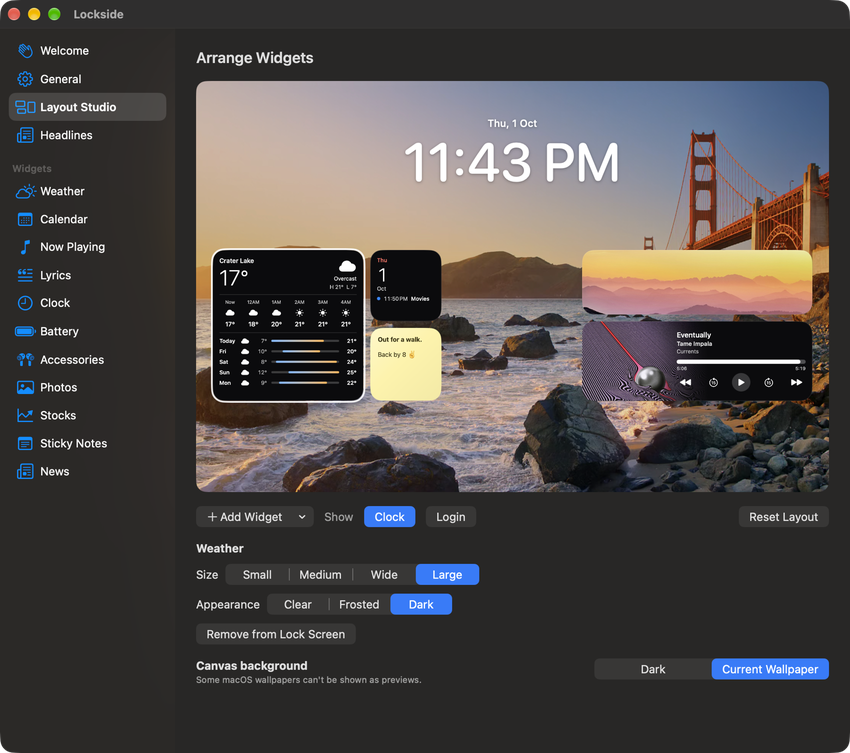
The real thing — Layout Studio with the Weather widget selected.
01
Drag anywhere
Top-left corner, dead centre, tucked under the clock. If you can drag it there, it lives there.
02
Snaps when you want it
Widgets line up with edges, centre lines, and each other. Hold ⌥ and they stop being helpful.
03
Five sizes
Compact, Small, Medium, Wide, Large — each widget offers the ones that suit it.
04
A look per widget
Pick an appearance for each one — Clear, Frosted, or Dark — so each widget suits the wallpaper behind it.
Appearance
Three looks. Mix them however you like.
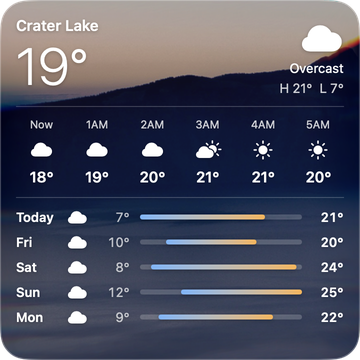
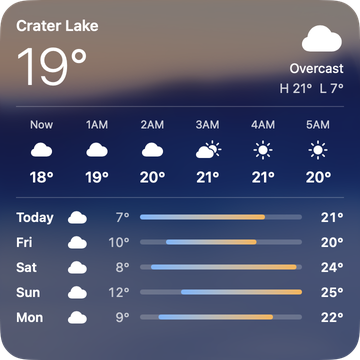
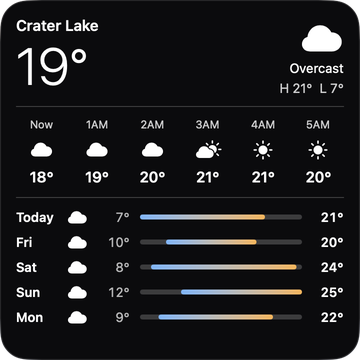
For when five sizes aren't enough.
Freeform
Grab a corner of Photos or Sticky Notes and pull. Any size, any shape.
Up to four of a kind
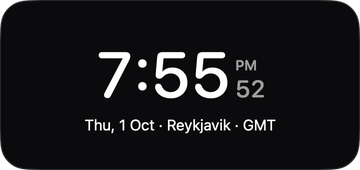
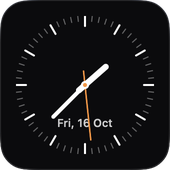
Two clocks for two cities. Weather for home and away. Each copy keeps its own settings.
Preview without locking
One click in the menu bar shows your widgets for five seconds, so you can check a change without typing your password again.
Nothing to save
Move it, resize it, walk away. Your layout is exactly where you left it the next time your Mac locks.